Explore Data
In this quick tutorial, you will explore some data resources to get yourself familiar with the NDP catalog and the different search functionalities
Substring Search
1 - Go the NDP Catalog.
2 - Type HPWREN Weather. You will see a dataset called HPWREN Weather Station Measurements among the listings. This is a dataset that we use as part of the Set up Workspace tutorial.
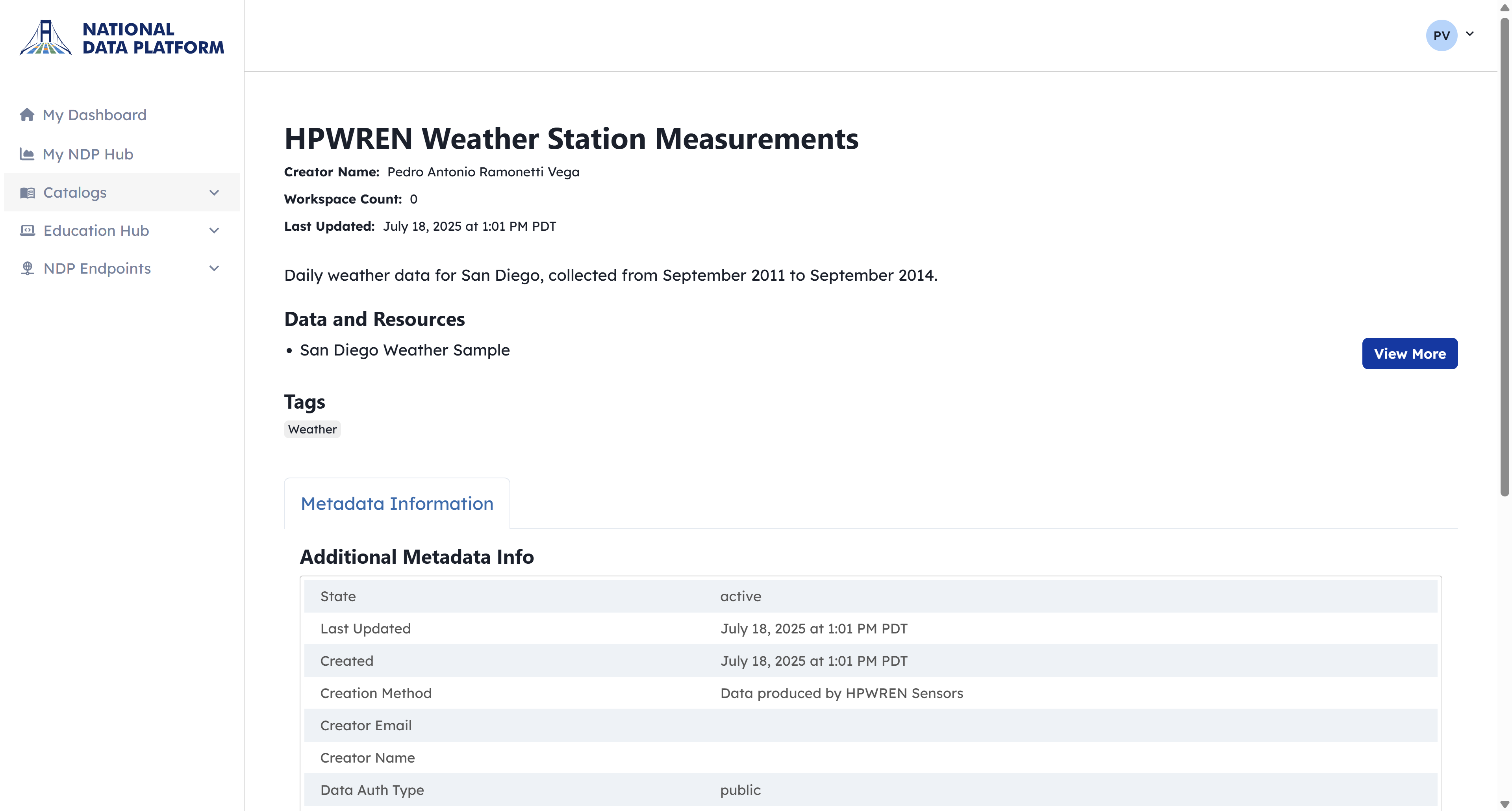
3 - To learn more about the dataset, click on View More. This will open a new tab where you can explore the metadata of the dataset, as well as each of its resources. For this specific asset, there are two resources. The first corresponds to a website with a map showing all the available sensors in the HPWREN network. The second corresponds to a CSV file containing a sample of weather measurements.
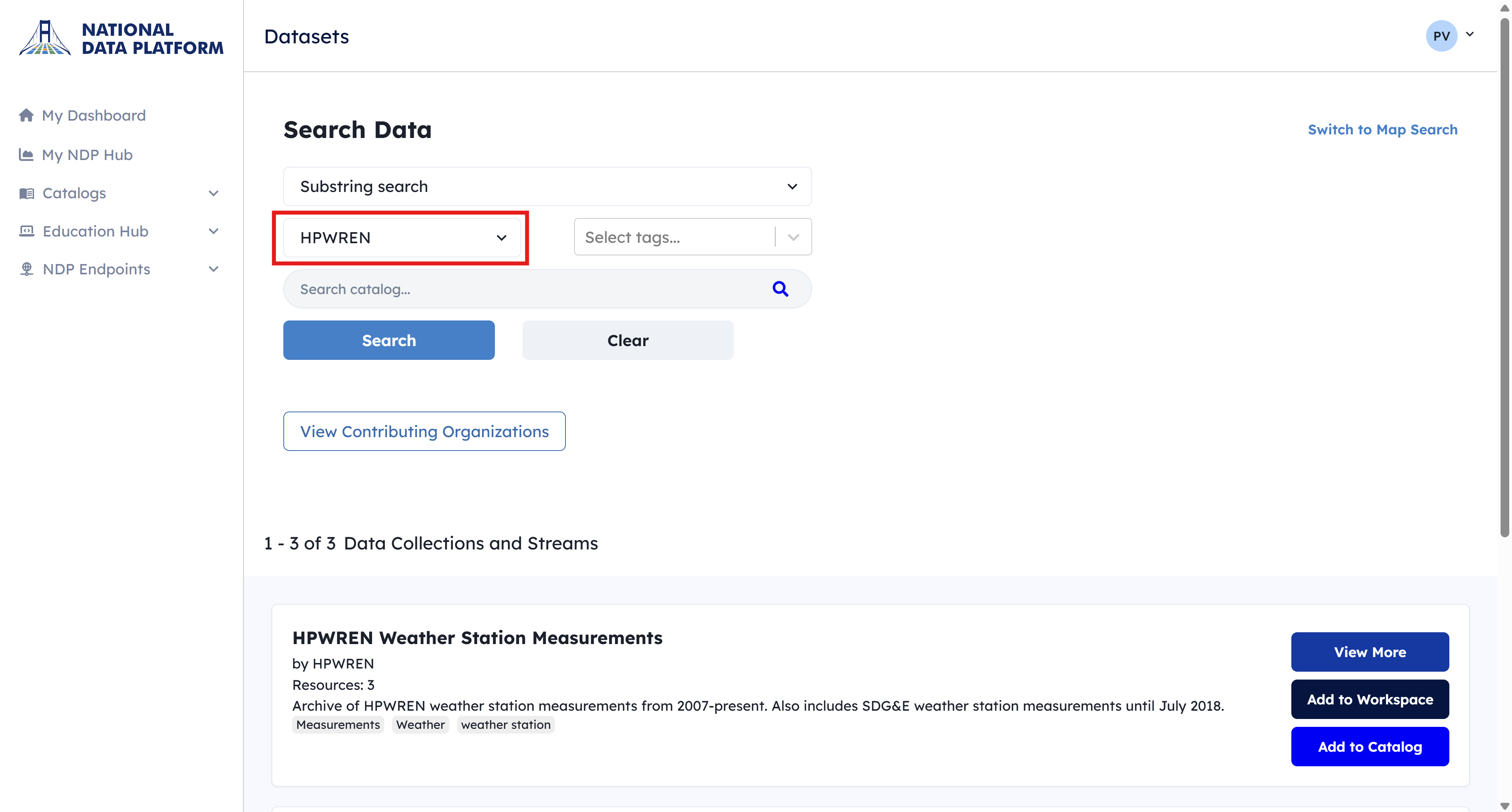
4 - To make your substring search more precise, you can select an organization and this will filter datasets that are exclusive to that organization
Map Search
1 - Click on Map Search
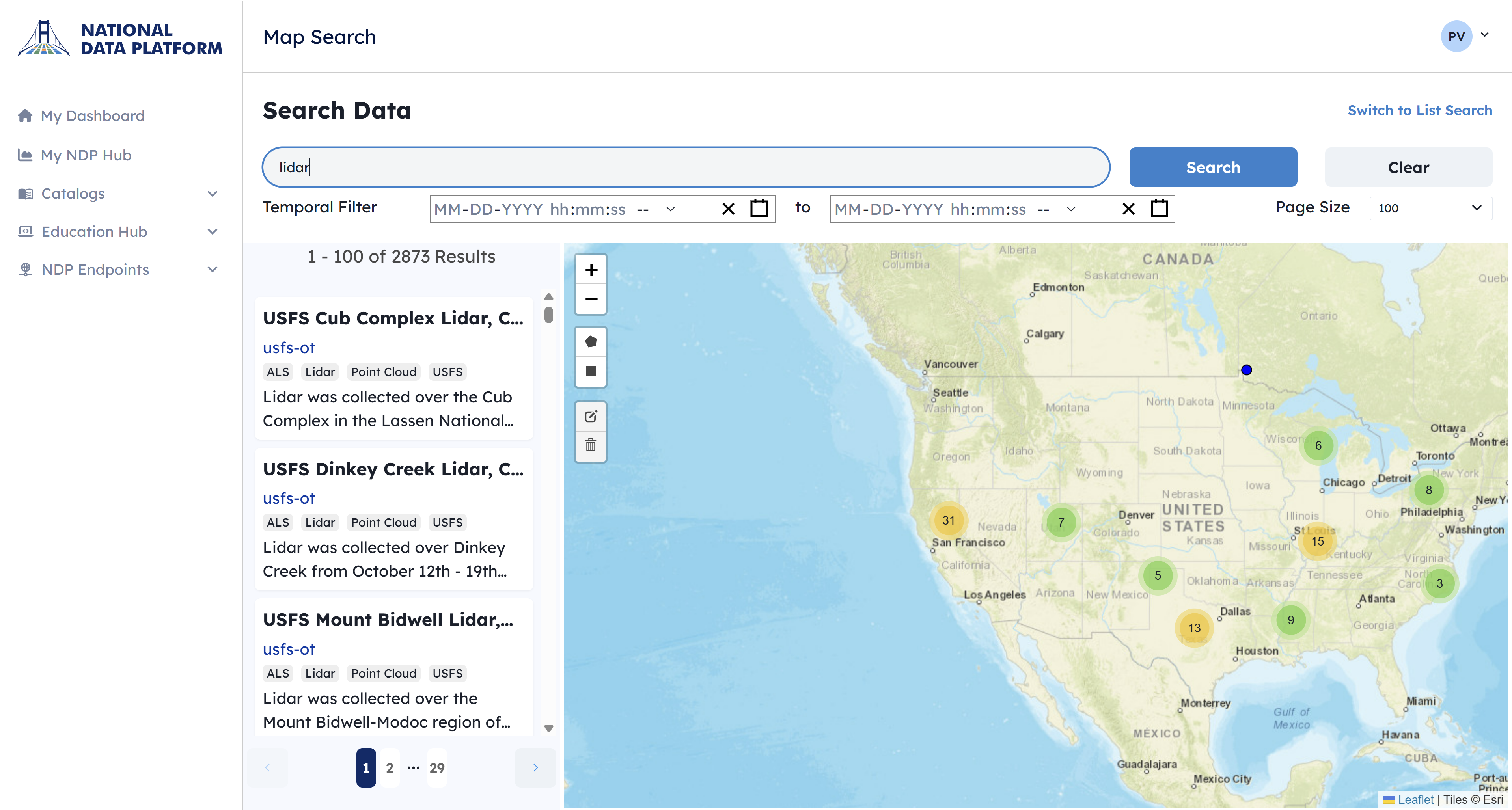
2 - Type the example lidar. You will see the sites where lidar data is available.
3 - You can also draw a polygon to obtain a dataset for an area of interest.
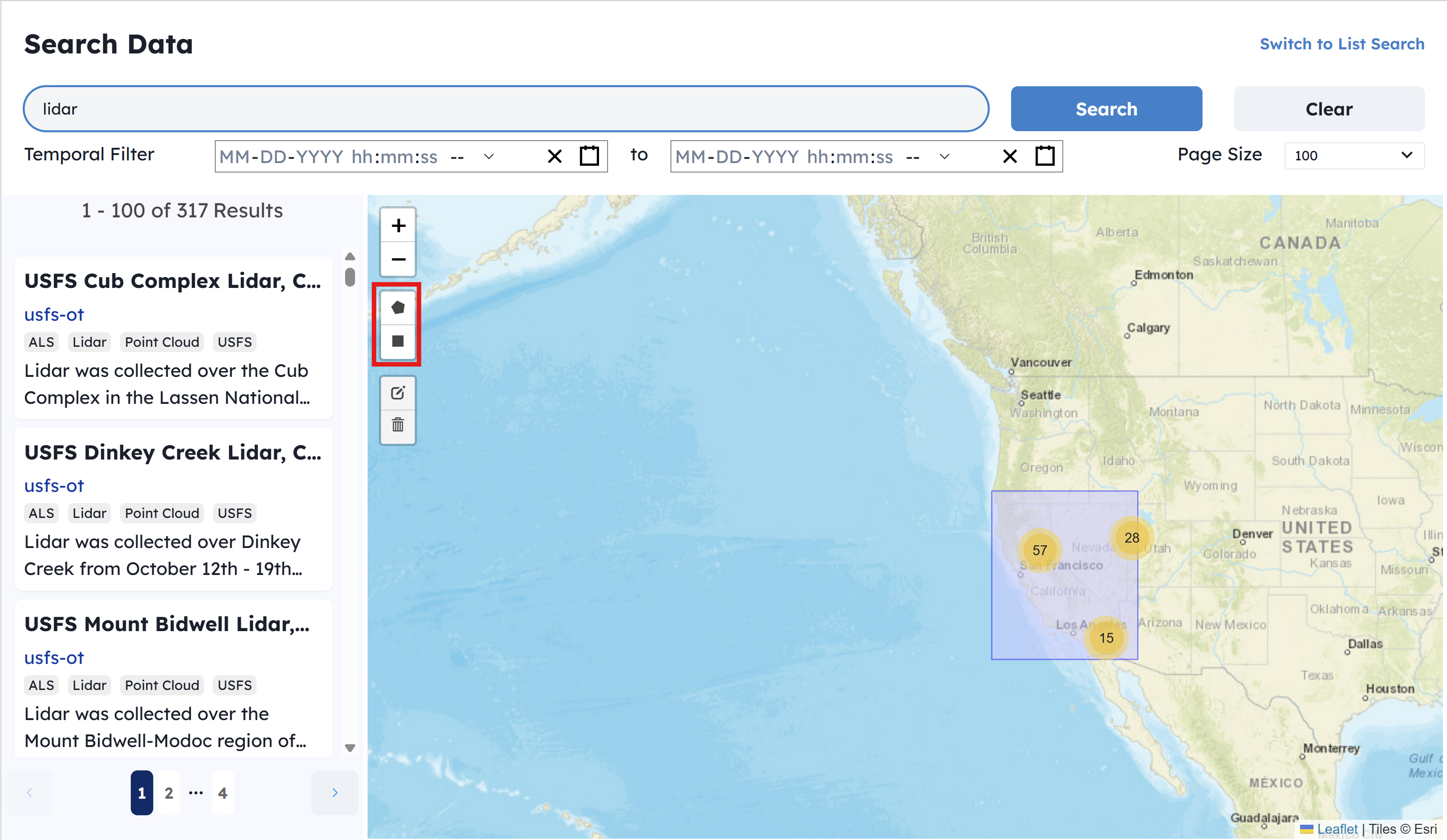
4 - Click on one of the yellow or green circles, and you will see all the overlapping datasets within that smaller polygon.
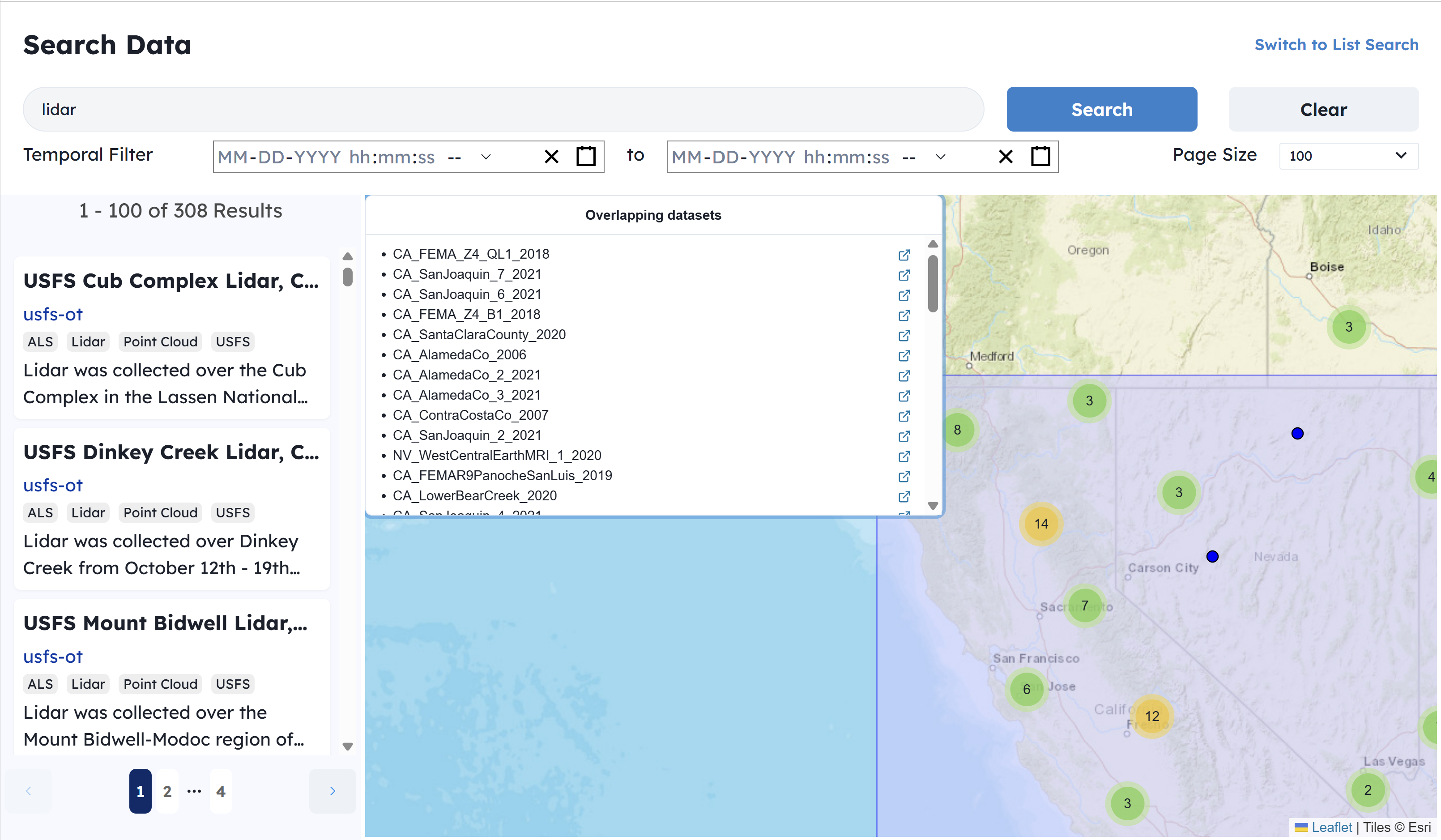
The blue dots represent the exact location of a particular dataset. Click on a blue dot or select a resource from the list of overlapping datasets to open a new window with more information about that dataset.