Registering Data in NDP catalog
The NDP Catalog is a metadata registry that allows organizations to share their digal assets (datasets, models, data services) with the community.
The NDP Catalog does not host or store any data or assets. Instead, contributors are responsible for providing users with access to their resources. This can be done through any of the following mechanisms: a direct access link, documentation, a download URL, an API, or other equivalent methods.
Before Registering your Dataset
-
Prepare your asset’s metadata. For guidance on each field, including which are required or optional, refer to the Metadata Schema.
-
Prepare each of your resources. A digital asset may contain multiple files or resources, such as documentation, schema files, data samples, and API endpoints. Ensure that each resource associated with the asset has a valid, updated access point.
Digital Asset Registration Process
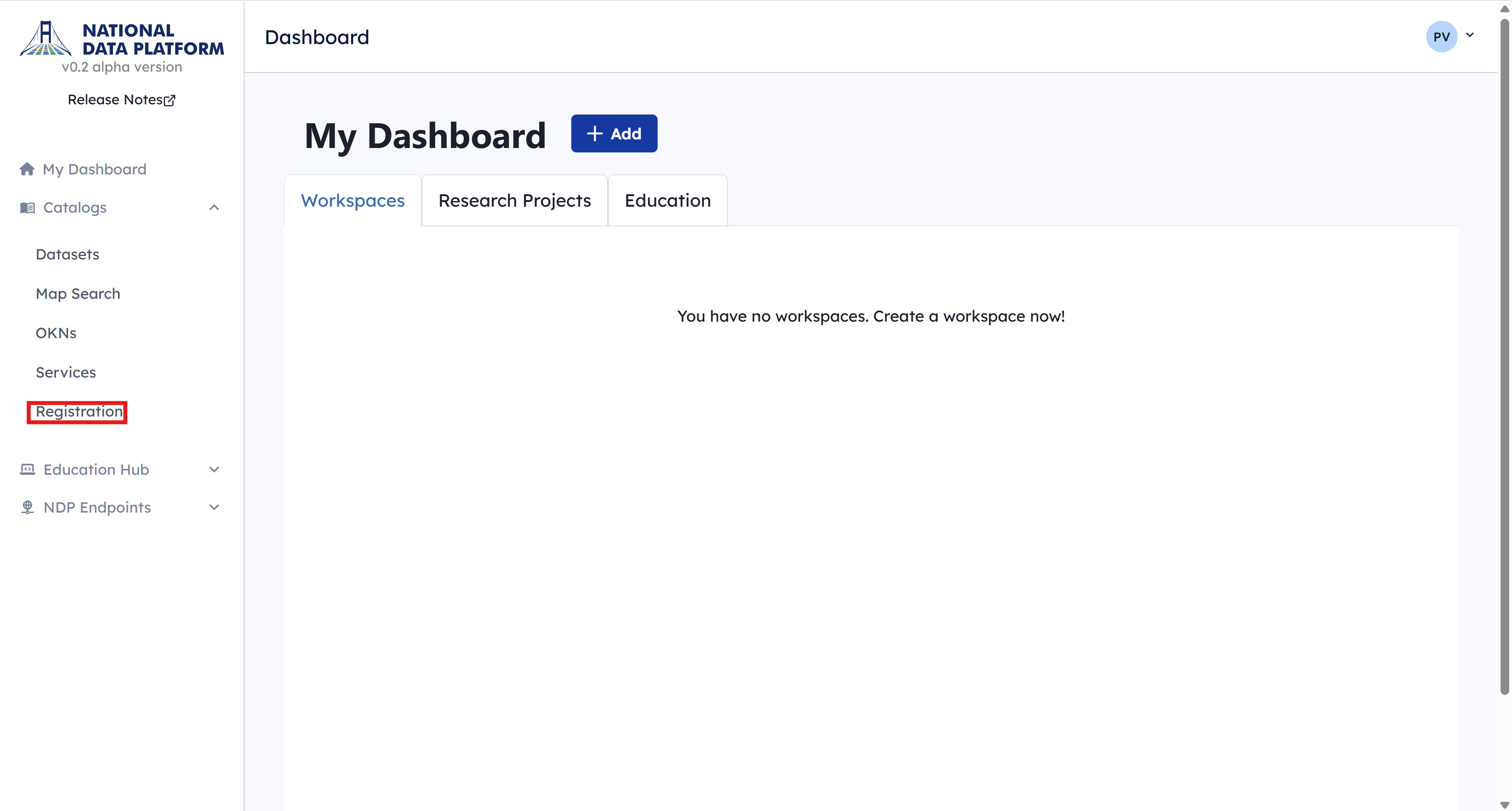
1 - Go to your Dashboard. In the left panel, click on Catalog, then select Add to Catalog.
2 - Click Register dataset.
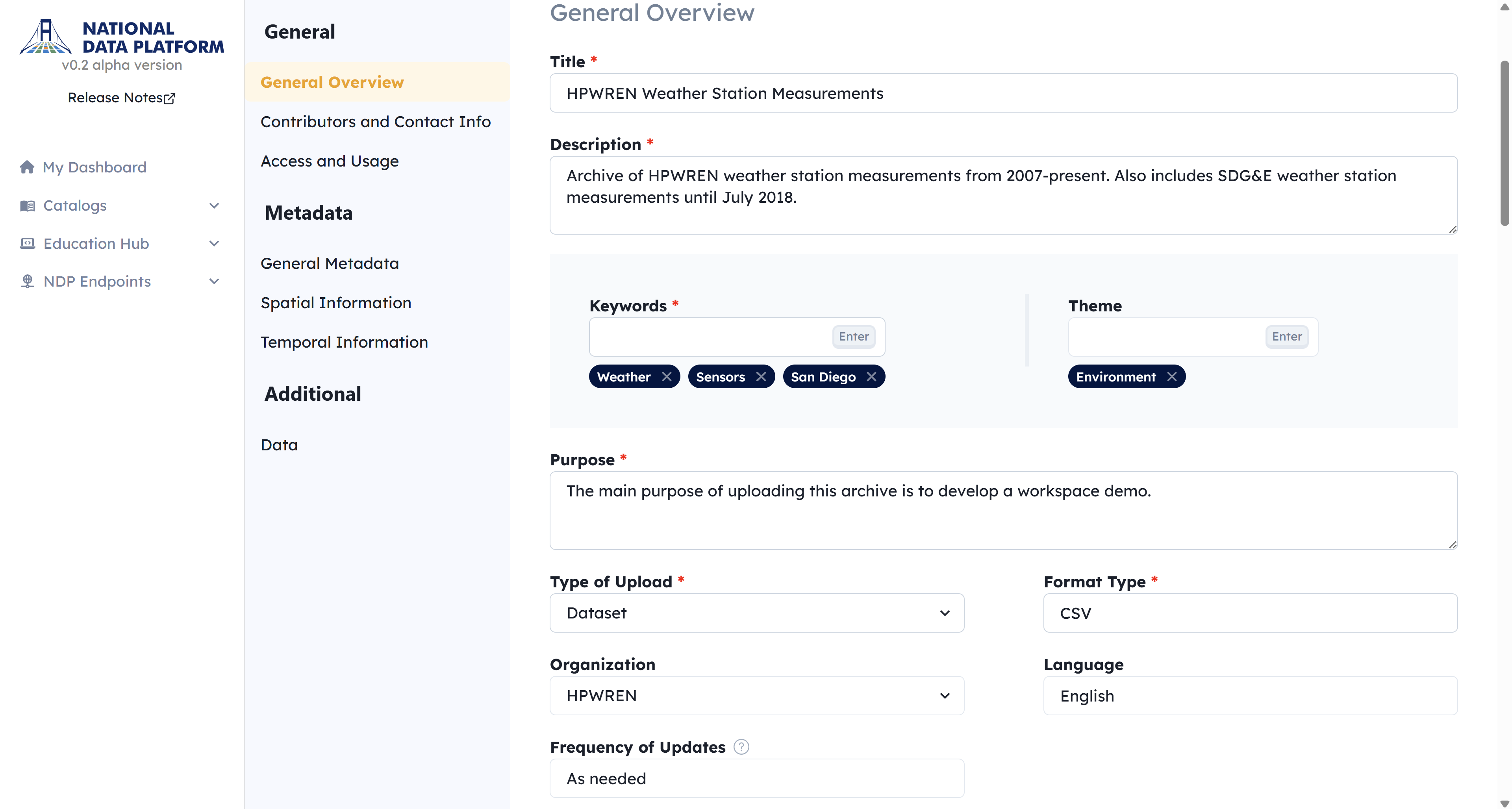
3 - Complete the metadata form.
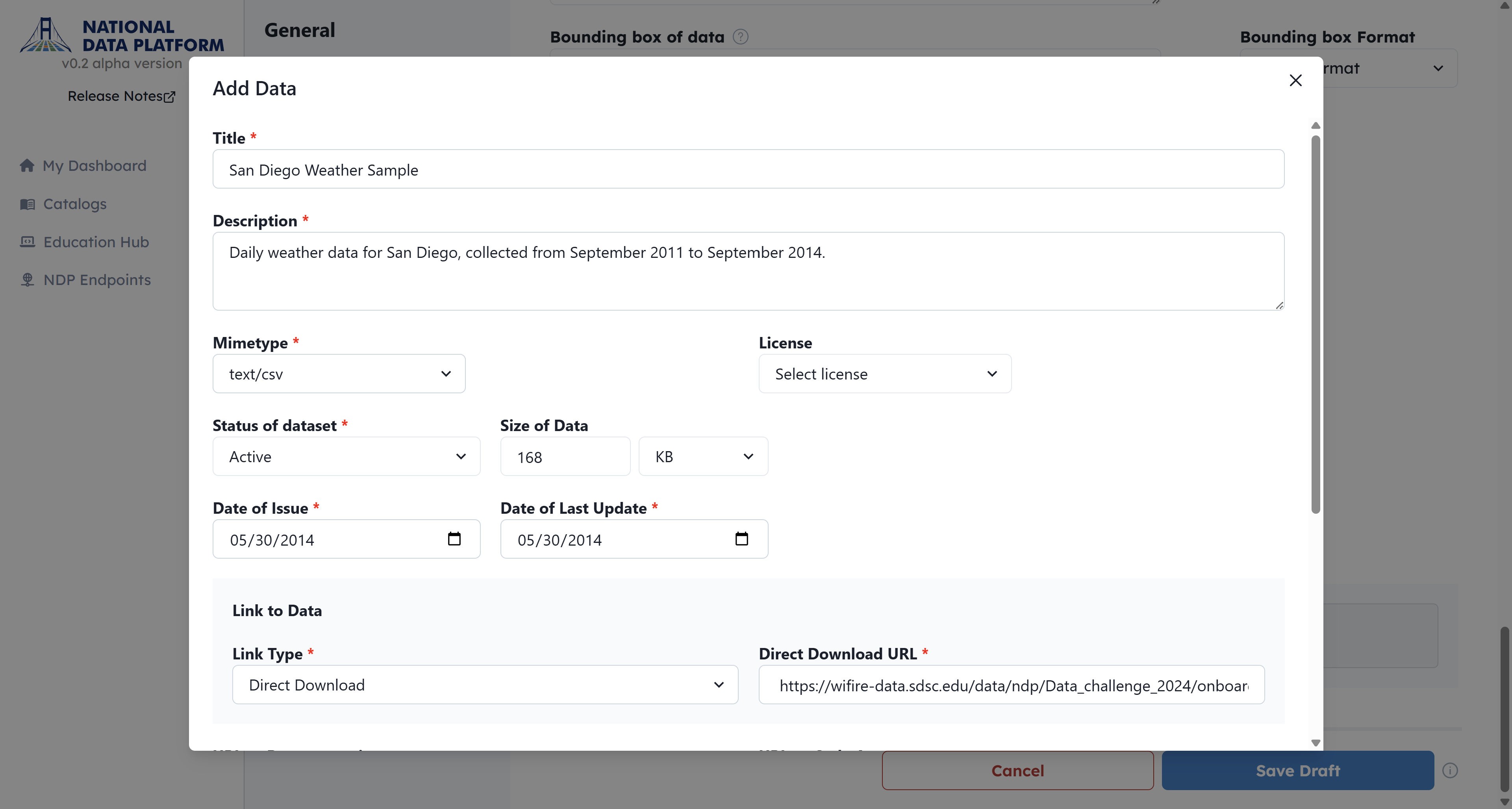
4 - To add individual files or resources, click Add Data and enter the required metadata and access information for each one.
5 - If you're not ready to submit, click Save Draft. You can return later and resume by clicking Edit next to your draft.

6 - Once all required fields are completed, click Submit for Approval.

After submitting your data registration form, you will receive a confirmation email acknowledging receipt of your submission.
Our team will carefully review your dataset to ensure it meets the standards and requirements of the NDP catalog. Please be patient as we complete this review process, as it may take some time.
Once the review is complete, you will receive a second email informing you of the outcome, either accepting or rejecting your dataset for inclusion in the catalog. If your dataset is rejected, it is because it did not meet the necessary standards.
If you have any questions or concerns regarding the review process or would like clarification on the status of your submission, please don't hesitate to contact our team for assistance.
Updating your approved requests
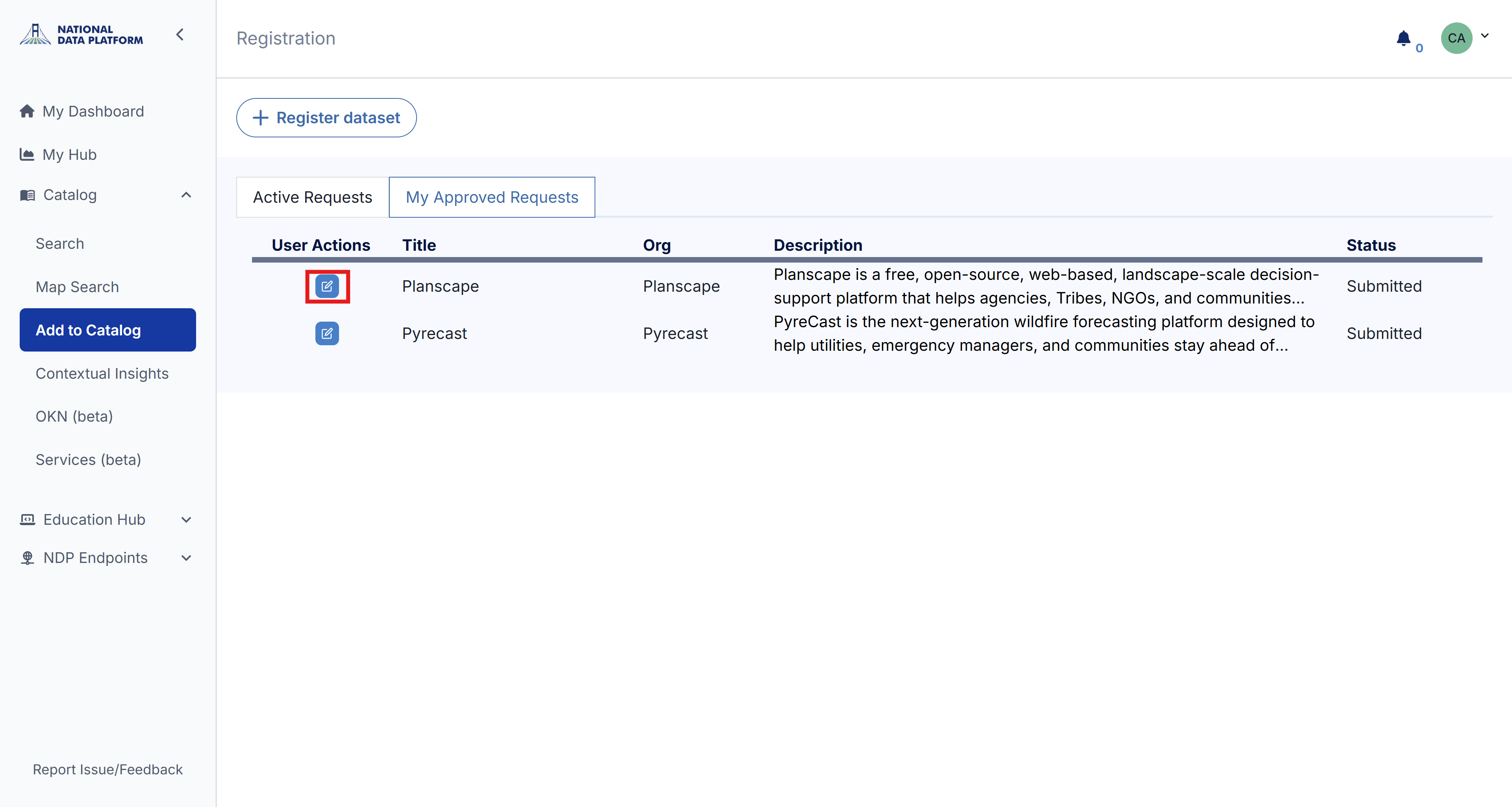
If you need to update a digital asset after it has been approved, go to My Approved Requests and click Edit next to the asset you want to edit.