Updating your profile
Creating a profile helps the community identify your work more clearly when assets are made public. Additionally, when people visit your profile, they can discover open resources you've published, such as workspaces, digital assets, projects, data challenges, or classrooms.
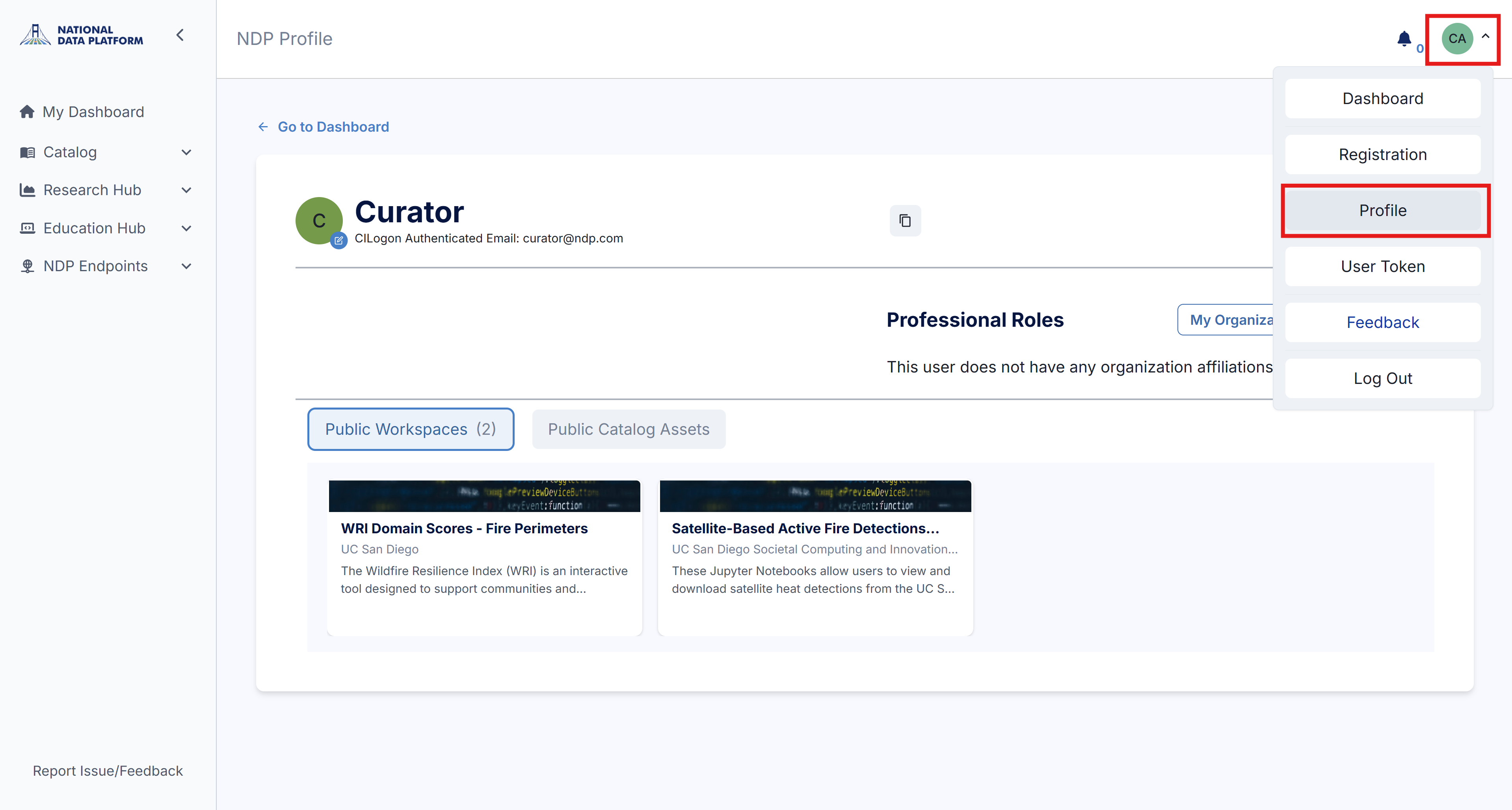
1 - Once logged in, click your initials in the top right corner, then select Profile.
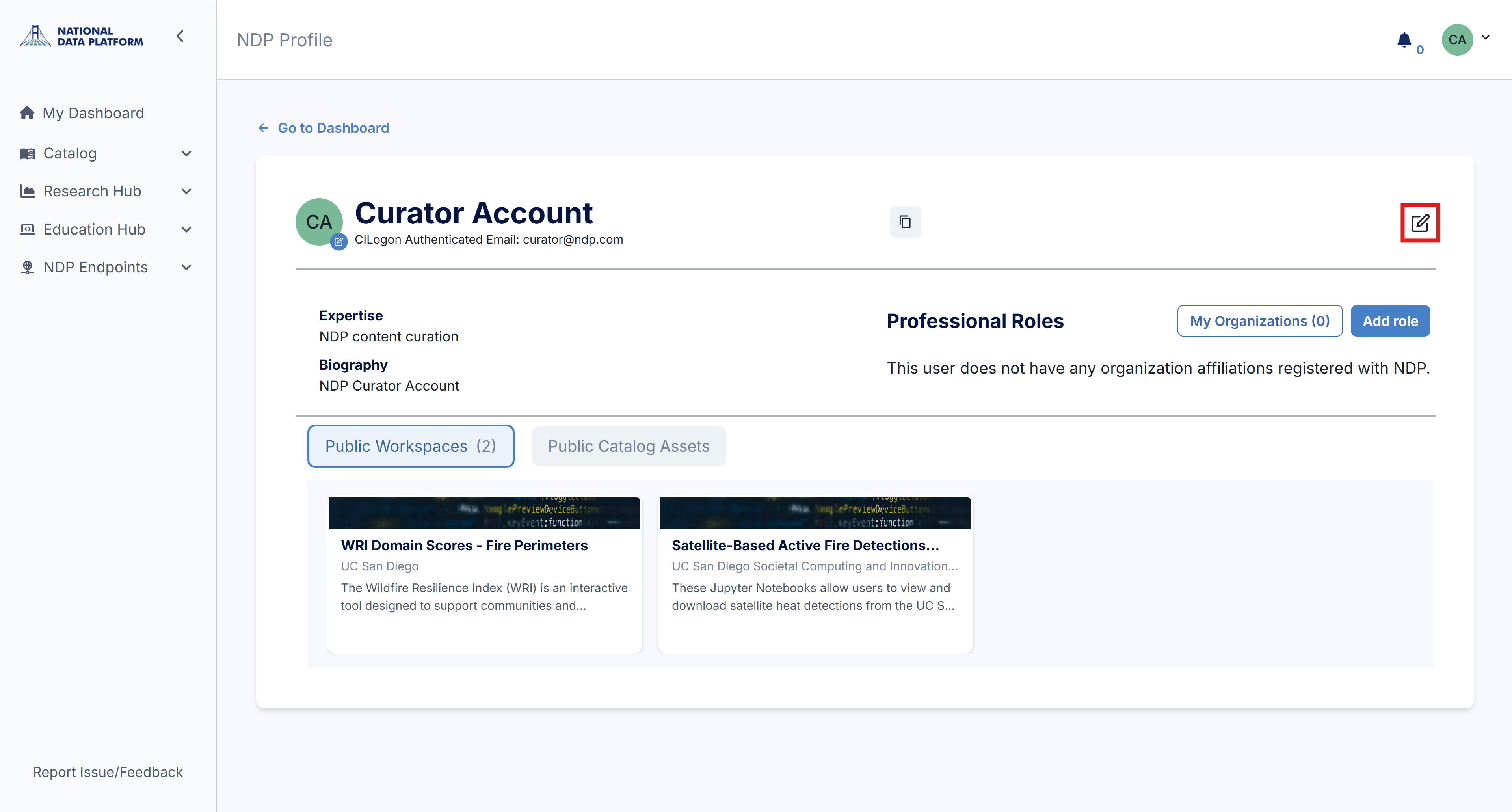
2 - You'll see a preliminary view of your profile, with your name and general info displayed first, followed by your contributions to NDP. To start editing your general information, click the pencil/notepad icon on the right.
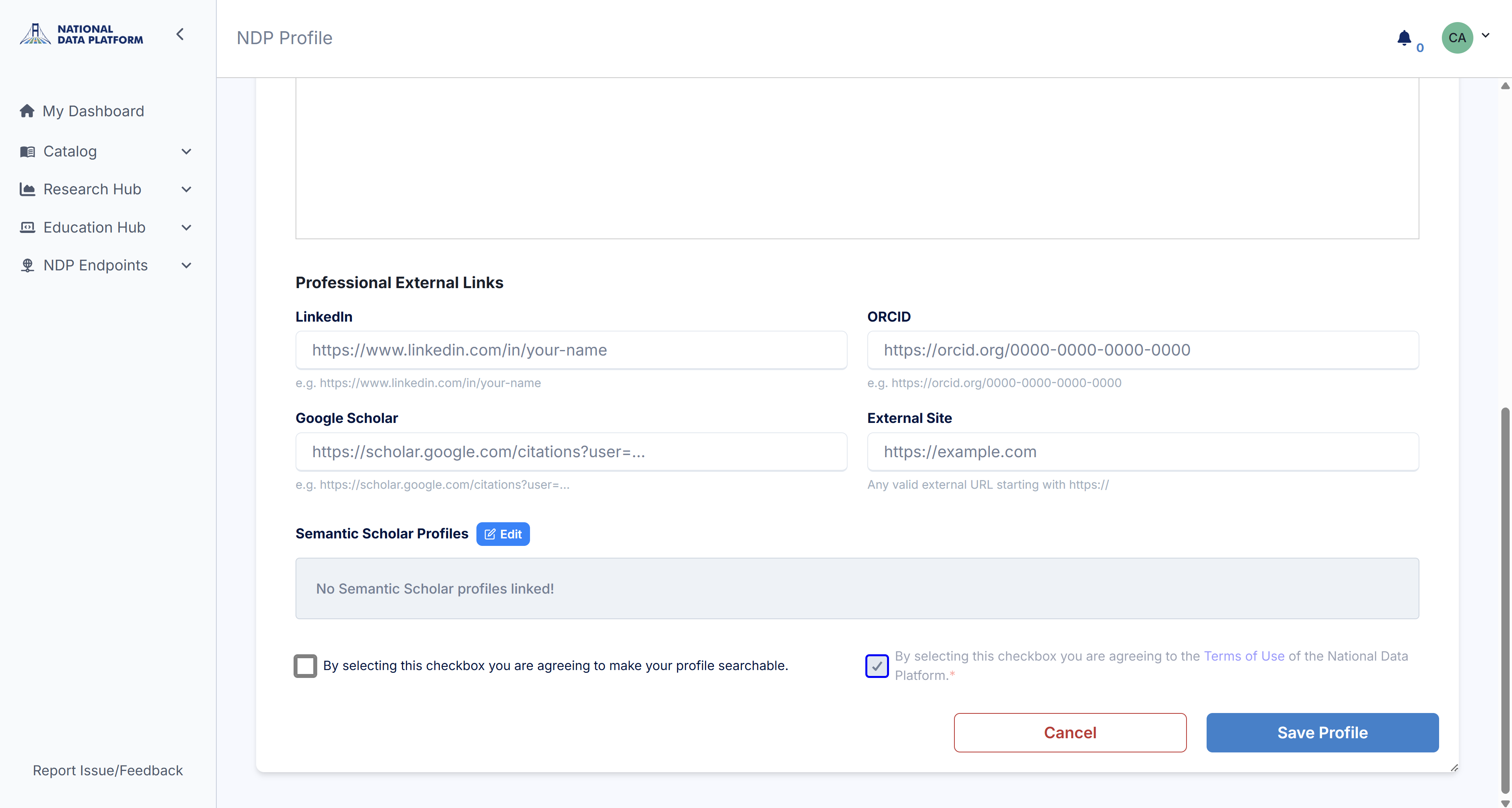
3 - Edit your display name, expertise, and bio. You can also add links to your professional profiles at the bottom, including LinkedIn, Google Scholar, ORCID, Semantic Scholar, or any professional website. Click Save Profile to save your changes.
4 - To add a profile picture, click the edit button on the circle to the left of your name. To add your current professional roles, click Add role. To add organizational affiliations, click My Organizations.