NDP Classroom Set-up
To host and set up a classroom, you must have professor credentials. To obtain them, please contact our team.
The general steps to create and set up an NDP classroom are as follows.
Preparing the Classroom
1 - Before you can create a classroom, you must have set up the workspaces that will be used for your course.
2 - Go to Education Hub → My Education Hub.
3 - Click New Classroom (yellow button).
4 - Fill in the main classroom information:
- Title of Class: The title of your class.
- Class Code: The unique class code used in your institution's program (for example, MSCS123).
- Semester/Quarter: The semester (1st/2nd or Fall/Spring) or quarter (Fall, Winter, Spring, Summer) in which the class is taught.
- Year: The year in which the course is being taken.
- Institution: The name of the institution where the course is being taught.
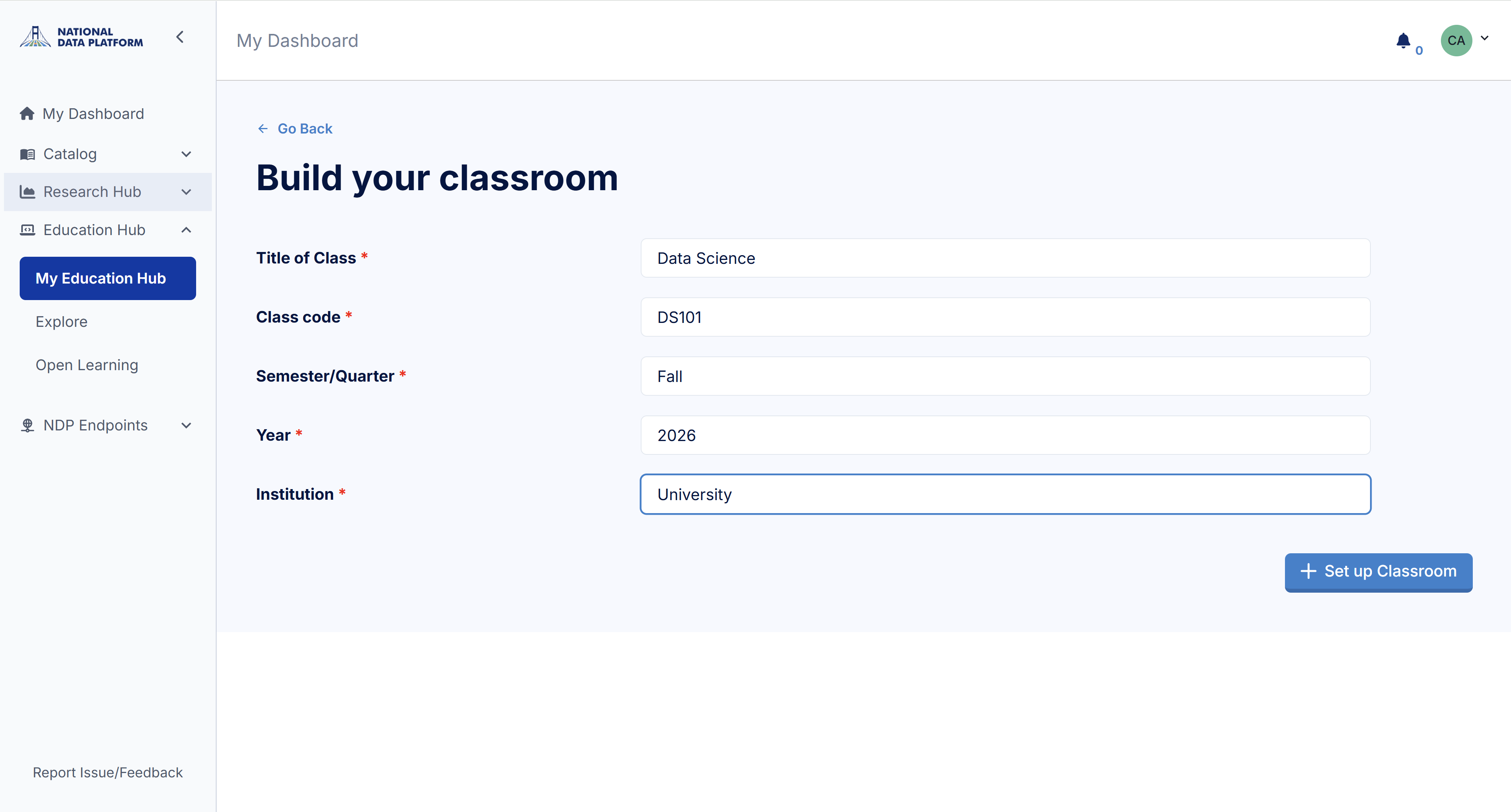
5 - Make sure all of the fields above are filled in before clicking Set Up Classroom.
6 - Add workspaces: Click Add a Module to add workspaces with a due date to your classroom. You don't need to add all workspaces at once. If you'd rather deliver materials as the course progresses, you can keep editing the classroom even after it's been published to students.
7 - Add a curated catalog: If you've prepared a curated catalog to help students find the relevant digital assets for your course, click + Add next to Curated Catalogs at the bottom of the classroom page.
8 - Save your classroom by clicking Save Changes.
Adding Students and Teaching Assistants
Review the following pages:
Activating Your Classroom
Once your classroom is ready to be shared with your students, activate it so they can see it as part of their Education Hub.
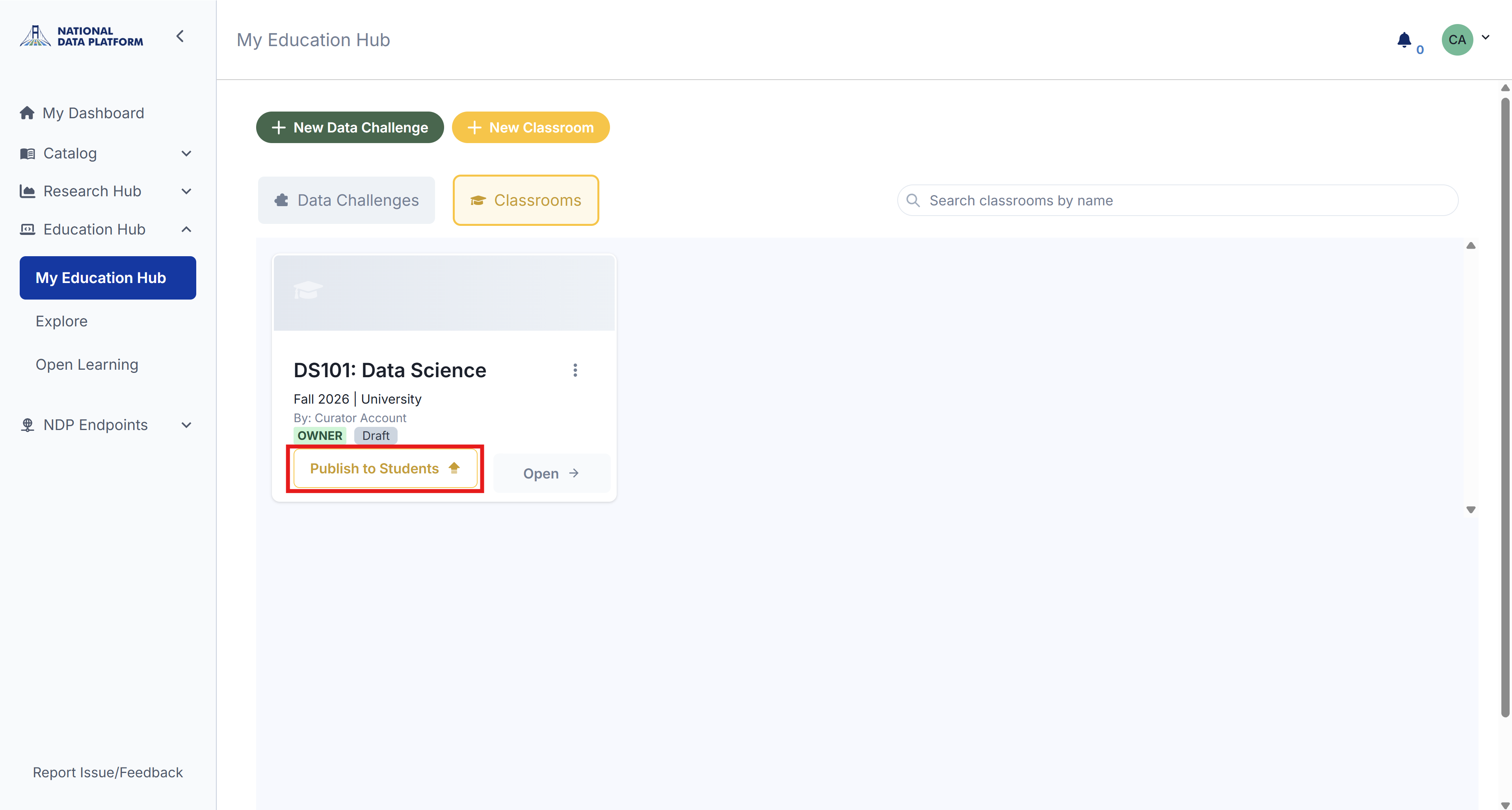
1 - Go to your Education Hub, then Classrooms.
2 - Locate the classroom and click Publish to Students.
Making Your Classroom Public
NDP encourages educators to share their reproducible materials with the rest of the community. If you'd like to make your classroom public so other educators can reuse or adapt your course:
1 - Go to your Education Hub, then Classrooms.
2 - Open the classroom you want to make public.
3 - In the top right, click Publish to Public. Your classroom will then become part of the collection of open classrooms within the Education Hub.